

The OrbitNote Chrome extension allows you to open PDF documents and add text and annotate. You can share the PDFs with students so they can use text-to-speech and other accessibility features to learn and share their thinking.
If you are having trouble locating the OrbitNote extension, please ensure you are logged into Google Chrome and SYNC is on. Here is how to log in ‘Accessing Chrome Extensions‘ and ‘Accessing SEA extensions from home‘.
OrbitNote Overview
Opening PDFs from your Google Drive
What Can Students Do in Orbit Note?
Open your PDF in OrbitNote and add text, images and annotations. Share a hard copy of your changes.
This allows educators and students to read and write math onto PDFs.
OrbitNote Educator Moves to Create Accessible Lessons
This takes your scans and finds the text to enable text-to-speech for your students.
Take your existing PDFs and split the document, delete pages or insert pages from other PDFs.
This makes a copy of the PDF for each student so they can respond directly on it.
This makes a copy of the PDF for each student and enables them to annotate the PDF.
OrbitNote Settings
Change the OrbitNote Settings
🔗Modify the language, voice and speed, and appearance.
See below or click the link to see how to personalze Orbit Note for your learning.
French Students and Educators:
If using a French PDF and you would like👂text-to-speech👂in French, in Speech Settings change the Voice Name to a French voice.
If you would like to use French 🗣️ speech-to-text 🗣️ in a text box, in General change the Language to French and then use Talk and Type in a text box.
Translation:
Note: OrbitNote will translate 1 word at a time and not a whole document. You can select the languages used in Settings.
Scan Worksheets with Your Chromebook
Try it out!
Open or share the links below:
🔗Basics and 🔗Beyond the Basics
Select ‘Open With’ -> OrbitNote.

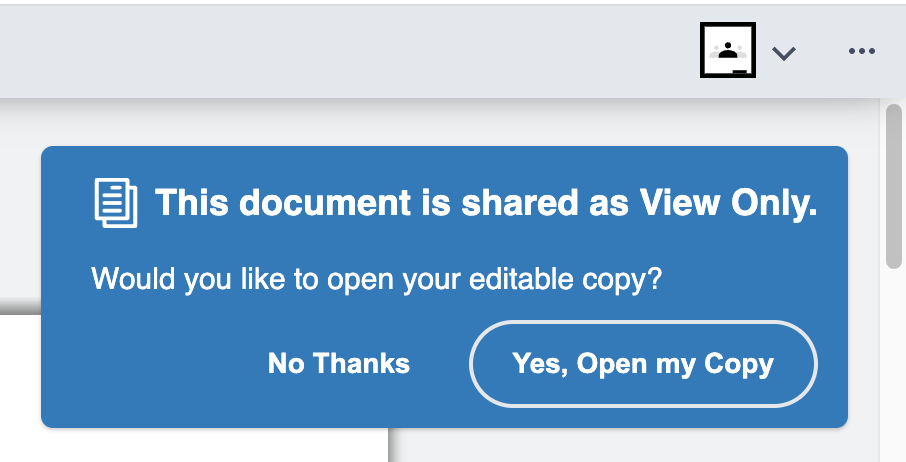
To edit with OrbitNote, you will need to make your own copy.
 pdsbat.net